Commands, startups, and scheduled tasks
What a project needs — the dev server, the tests, the deploy, the set of sessions you open it with — lives in the repository beside the code, not in an app database. It reviews in a diff, clones with the project, and is legible to whoever, or whatever, opens the repo next.
The .saggar directory
A project can have one, and what belongs in it is a real distinction rather than a coin flip. Git roots are projects without needing the manifest; editing shared metadata creates it:
| Path | Is |
|---|---|
| .saggar/project.json | Shared project configuration: its display name and documentation folder. Committed. Saggar keeps a last-known cache locally so launch never waits for every project disk. |
| .saggar/commands.md | The project's commands, and its startup set. Committed. |
| .saggar/jobs/*.json | One file per scheduled task. Local to the checkout and ignored by Git. |
| .saggar/scratchpad.md | The notes pane behind |
See .gitignore and .saggar for the exact ignore rule and why the shared files should remain visible to Git.
Configure a project from the CLI
saggar config reads the current
project's .saggar/project.json. It can
also set the shared documentation folder:
saggar config
saggar config --docs handbook
saggar config --clear-docs
These commands edit the project files directly. Saggar doesn't need
to be running, and the shell doesn't need a
SAGGAR_SESSION.
The CLI can also add a durable project command, choose where it opens,
and pin it to session headers on this Mac. Put
-- before the command so its own flags
aren't confused with Saggar's:
saggar config command \
--name "Example site" \
--monitor \
--pin \
-- npm run start
This writes .saggar/commands.md, marks the
command to open in the monitor dock, and records the pin in this
Mac's project settings. The project must already have been opened in
Saggar before a command can be pinned. Repeating the same name, in any
letter case, replaces that command and its role instead of adding a
duplicate. Without --name, the command
itself is the name.
The available roles are --primary,
--companion,
--monitor,
--background, and
--quick. Leave the role out for an
ordinary command that opens in the main pane when pressed.
The commands file
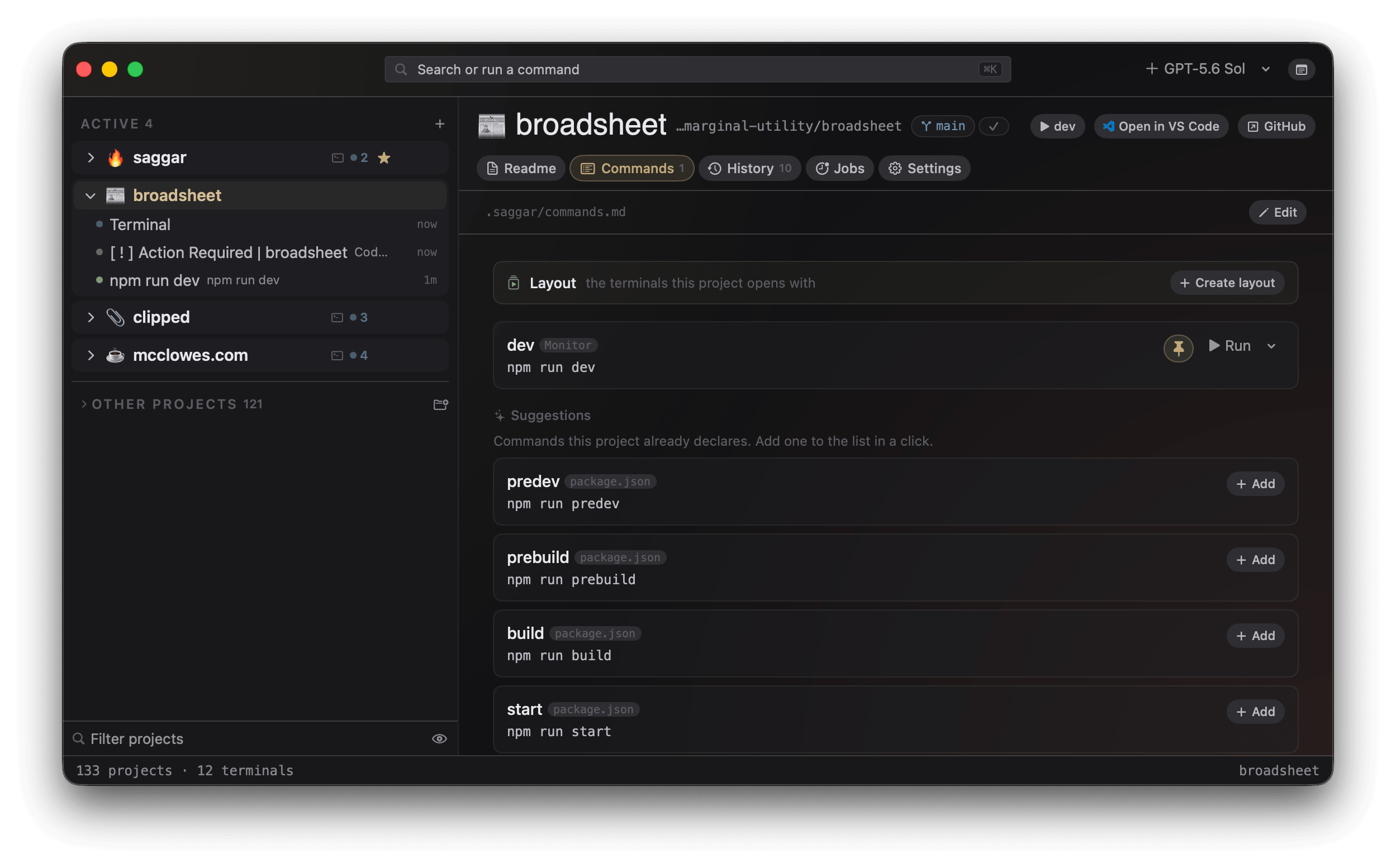
A project's Commands tab turns
.saggar/commands.md into one-click buttons.
A click opens a session in the project and runs the command, landing on
the menu as an ordinary session so the status engine watches it — a dev
server is long-lived far more often than it is one-shot, which is why
this isn't ⌘P's self-closing
panel. The commands join the palette for the project on screen.
The grammar is one small rule:
A bullet carrying a backticked span is a command. The span is what runs, the text before it names it, and the text after it annotates it.
That annotation is worth writing. It leads the tooltip when you hover
the command's button, ahead of the line Saggar generates about
where the session lands, so it is where you tell a teammate what this
one is for. Introduce it with a dash, a colon, or
// if a code comment is the more natural
reflex — all three read the same.
Everything else is prose and ignored — headings, intros, bullets without backticks — and a fenced code block is skipped whole. So a commands file written for humans parses as one for Saggar, and a pasted example never becomes a button. Editing happens in the tab, saved as you go and re-parsed live, so a bullet becoming a button is something you watch.
# Commands

Everything you need to work on this service.

- Dev server `npm run dev` — port 3000
- Tests `npm test` // the full suite, about a minute #ci
- Typecheck `npm run typecheck`
- Web app `npm run web` #monitor #browser
- iOS app `npm run ios` #monitor #simulator

## Layout

- Agent `claude` #primary
- Dev server `npm run dev` #monitor
- Tests `npm run test:watch` #monitor
Live output
A command can declare the live surface it produces with
#browser or
#simulator. This is separate from terminal
placement, so a command can carry both
#monitor #browser. Starting that configured
command from the mobile app runs the Mac-approved command, then opens the
matching live viewer. A Simulator viewer keeps checking while the build
boots its device.
Agents can write the same metadata through the CLI with
--browser or
--simulator. For example,
saggar config command --name iOS --monitor --simulator -- npm run ios
Local CI
Add #ci to the command that reproduces
the checks required by CI. Saggar shows the tag in the Commands table,
and tools such as Fettle can use it instead of guessing which test,
lint, or build scripts need to run.
Startups
The sessions a project opens with, in one press: an agent in
the main pane, the backend on the menu, the tests in the monitor dock.
It is a ## Layout section of the same
file rather than a second one, so the set is committed with the code and
a teammate cloning the repository gets it. An older
## Startup heading still reads the same.
A bullet may carry one trailing tag saying where its session goes. These are exactly the dispositions Saggar already had, so a startup declares where things land and invents nothing new to put them in:
| Tag | Lands |
|---|---|
| #primary | In the main pane — the one you type into |
| #companion | In the split beside it (see split view) |
| #monitor | In the monitor dock, read-only |
#background or untagged | An ordinary menu session |
| #quick | In the self-closing quick panel when the command is pressed. A layout has no use for it, so a startup treats it as untagged. |
Pressing it twice is safe. A command already running is
adopted and re-placed rather than started again — two dev servers
fighting over one port is a second-press failure, and those are the ones
that reach users. A second #primary, a
repeated command, and a runaway section past the caps are each skipped
with a reason rather than silently obeyed. A startup always lands you in
a session: most sets are things you watch rather than type into, so
when nothing claims the main pane it gets a plain shell, which is also
what gives a lone #companion a left-hand
side.
Nothing starts on its own unless the file says so. The
project landing offers the set when a project has one declared
and nothing live yet, so restore wins; the Commands tab carries the
Open layout button always; and the palette has the
verb. To skip the click, decorate the heading itself —
## Layout #auto, which the Commands
tab's Auto-open toggle writes for you — and opening
the project applies the layout, once per launch and only while nothing
in it is live. The commands go out staggered, so six cold starts
don't land in the same instant.
Scheduled tasks
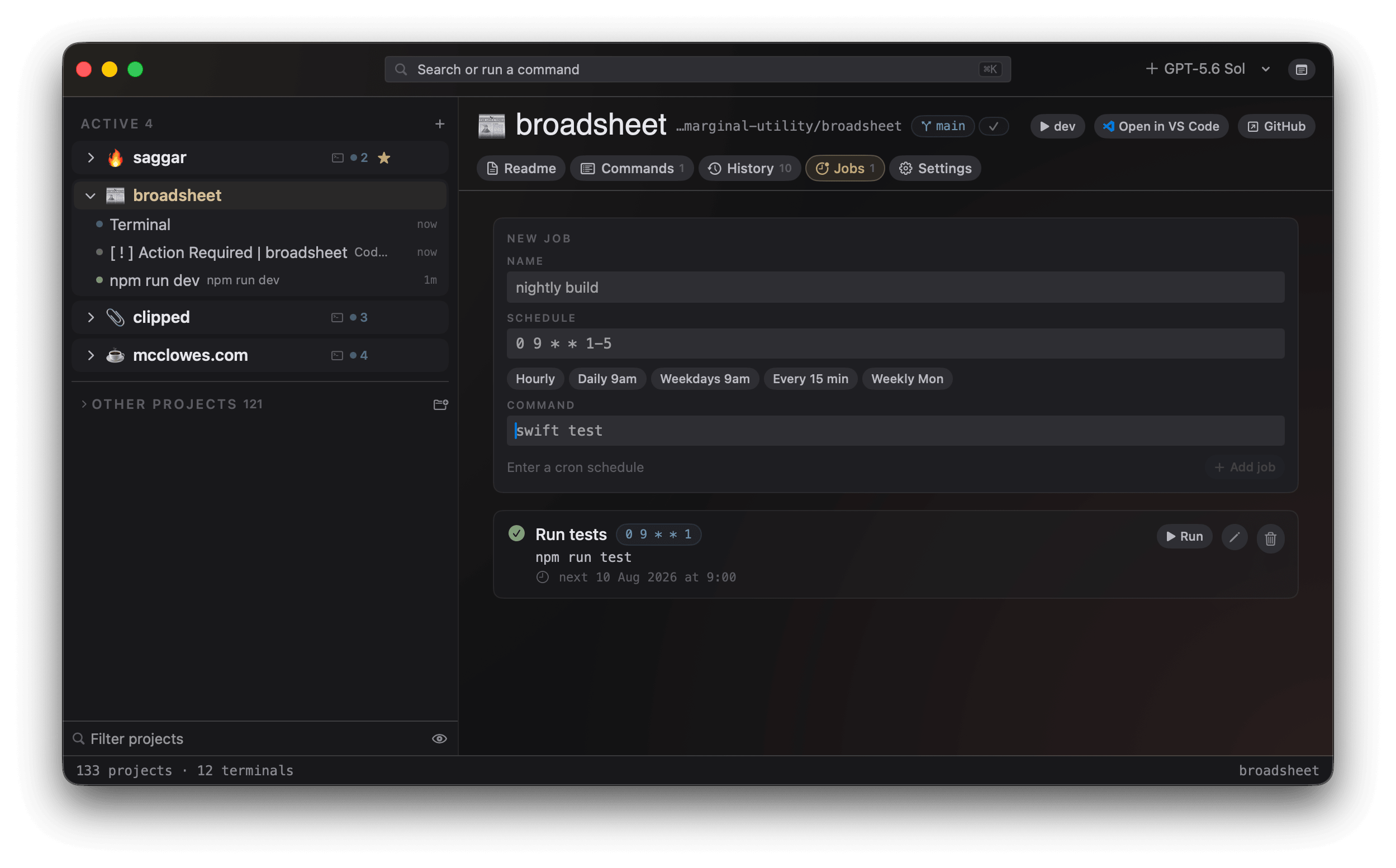
A project's Automations tab holds recurring tasks using cron
syntax — minute hour day-of-month month
day-of-week, plus the @hourly,
@daily, @weekly
and @monthly macros, lists, ranges, and
*/n steps. Each task is one JSON file under
.saggar/jobs/, so it lives beside the code
it runs without being shared through Git.
A scheduled task can run its own shell command or call one from the project's
Commands tab. A linked command uses its current role,
such as #monitor or #quick,
each time the task runs.
When a task's time comes it opens a fresh session in its project and runs its command in the main app — only while Saggar is open. This is not a launch daemon and does not pretend to be one. A fire time that passed while Saggar was shut fires once on the next launch, not once per missed minute; turn off Catch up missed runs in Settings under Agents, Automation, and the missed time is skipped instead, so the task waits for its next scheduled minute. Scheduled tasks edit in place, and a schedule change measures from the moment of the edit, so a fire time the old schedule left behind doesn't replay.
Menu rows without a shortcut
Every chord is listed on Keyboard and the palette. These menu rows have none, so the menu bar, and for some the palette, is where you reach them:
| Menu | Rows |
|---|---|
| Saggar | Report an issue… · Give feedback… · Join the community on Slack… · Check for updates… · Open .zshrc, .bashrc, config.fish, or config.nu, named for the shell you run |
| Projects | Show unfinished work — ⌘L's filter with the toggle already on |
| View | Show Automations |
| Window | Move session to a new window |
| Sessions | Queue prompt… · Reset terminal — a full reset for a wedged screen, where ⌘⇧K only clears · Send a command to several sessions… · Manage sessions…, which opens Settings ▸ Sessions |
| Help | What's new in Saggar · Saggar website |