Tips
None of this is required to use Saggar. All of it saves a step, and most of it is the sort of thing you only find by accident. Keyboard shortcuts have their own page — see Keyboard and the palette.
Hover a link in a terminal
Rest the pointer on a file path in any terminal output and a preview card appears.
What is in the card depends on what the path is:
- a text file shows its first few lines;
- a folder shows what is in it, and how many entries;
- an image shows the image, whole rather than cropped.
The card reads the file once, when the hover lands, and caps how much it reads. Hovering a path in a huge log never drags the whole file through memory.
Open or reveal from the card
- Open opens the file in the project's IDE, at the line number if the path named one.
- Reveal shows it in the Finder.
- Skip the card: hold ⌘ and the link underlines and the pointer becomes a hand, and ⌘-click opens it.
URLs
URLs get the same treatment, with the page's title and description fetched for
public addresses. Anything local — localhost, .local, a private address —
is never fetched.
Attach files to a session's first task
Drop files onto the Attachments section of the new-session dialog, or press Add files to pick them.
Saggar puts each file's path at the front of the task it hands the agent, so a screenshot of the bug and a sentence about it start the session together rather than as a second turn.
- The limits match the phone app: ten files, 32 MB each, 64 MB in total.
- An attachment on its own won't start a session — write the task too, since a file with no question attached isn't one.
Hover an agent's image attachment
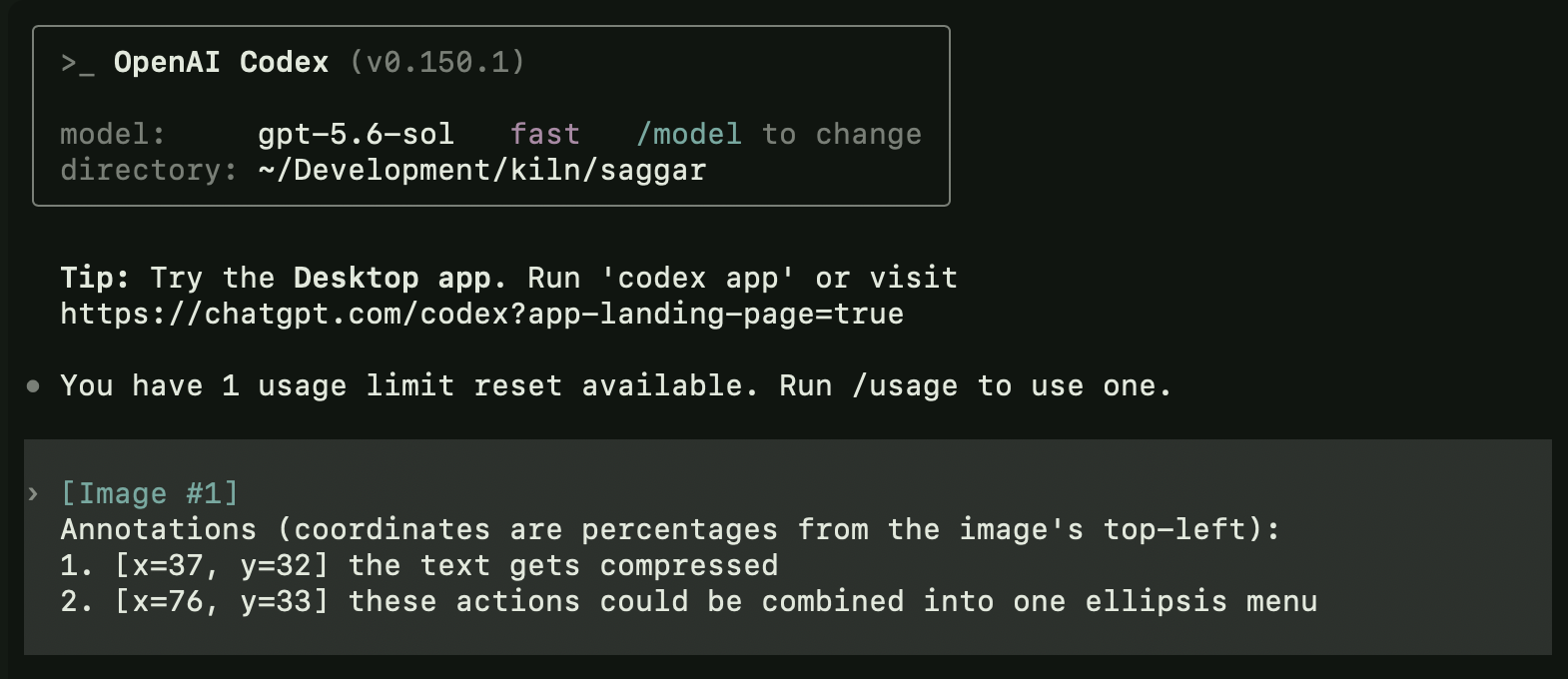
Hover the [Image #1] placeholder that Claude Code or Codex writes back and
Saggar shows the image you actually sent.
When you paste or drop an image into the TUI, it replaces the image with a placeholder. Saggar keeps the bytes. Useful several prompts later, when you no longer remember which screenshot was #2.
Add comments to an image
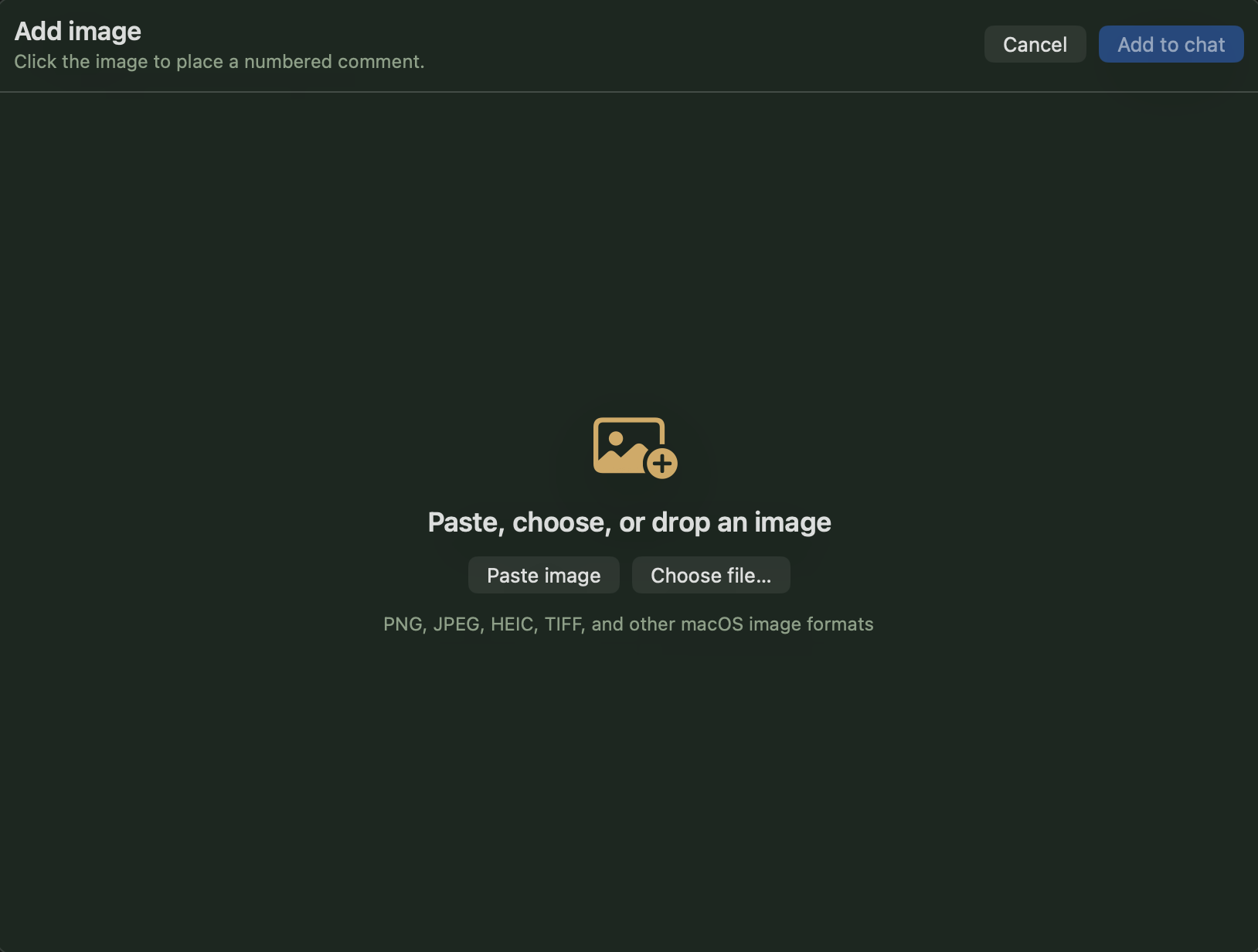
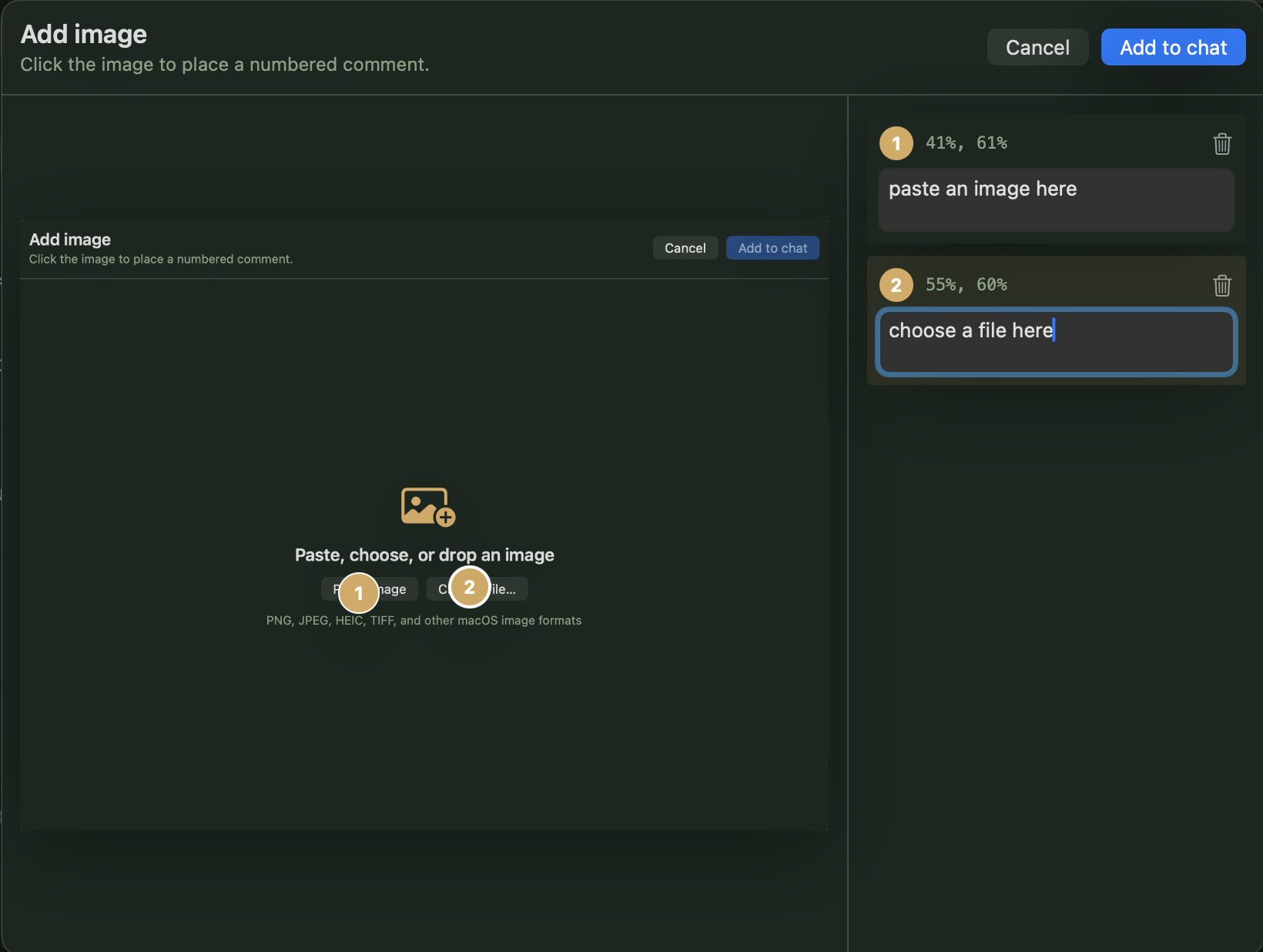
Press ⌘I in an agent session, or open the command palette with ⌘K and choose Add image…, then click anywhere on the image to place a numbered comment.

Choose an image
Paste an image from the clipboard, choose a file, or drop an image into the window. Saggar accepts PNG, JPEG, HEIC, TIFF, and other image formats supported by macOS.
Place comments and send
Describe what the agent should look at in each comment. Add as many comments as you need, or remove one with its trash button.
Add to chat sends the image and a numbered list of your comments with their coordinates, so the agent can connect each instruction to the right place.
Add comments to a file
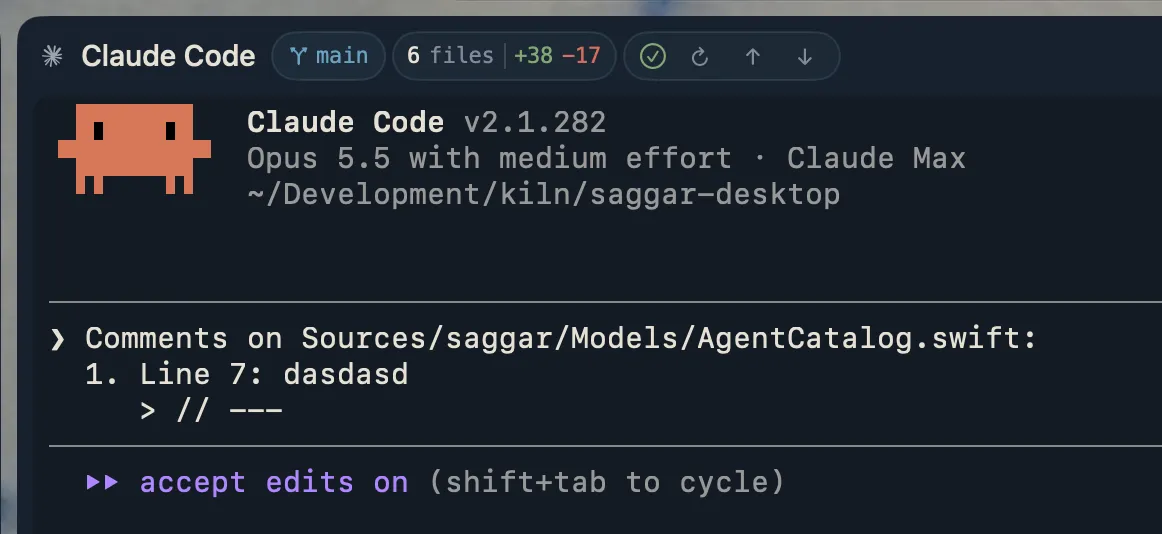
Press ⌃⌘I in an agent session, choose Annotate file… in the command palette (⌘K), or choose Annotate… on a file in the Git chip's changes. Select one or more lines and comment on them, like a pull request review. Saggar never edits the file.
Add to chat sends the file's path and a numbered list of your comments, each with its line number and the code it refers to.
Queue a prompt for a busy agent
Right-click a session and choose Queue prompt…, or find Queue a prompt for this session… in the command palette (⌘K).
You think of the next instruction while the agent is still working on the last one. Rather than hold it in your head, queue it.
When it sends
The prompt waits on a Queued prompt card over the session until current work finishes and that session is idle.
- Saggar starts one queued prompt at a time, oldest first, so queued work doesn't quietly increase the number of agents running in parallel.
- If you have typed in that terminal in the last few seconds, the queue waits rather than pasting on top of a half-written line.
- Press Send now on the card to send it immediately instead, or cancel the queue from the card's ⋯ menu.
Across a restart
Queued prompts survive a restart, because sessions do — Saggar reopens the terminal and asks its agent to resume. Each prompt remembers which agent it was written for and waits until that agent is back inside the terminal, so a resume that didn't take leaves the prompt waiting rather than typing your prose at a bare shell prompt. Closing the session drops what it was holding.
This is the in-session sibling of Run next… (⌘⇧R), which queues a whole new session to open when this one closes.
Right-click a session
The context menu is not just copy and paste. Saggar's shell integration knows where the last command started and ended, so the menu offers:
- Copy last command output, without selecting it (⌘⇧C does the same);
- Send last output to scratchpad, straight into the project's notes;
- Save transcript… for the whole session;
- New session here, in the directory this shell is actually in;
- Open in your IDE, Reveal in Finder, and Copy working directory path for that directory. (Copy path is the project row's item.)
Summarize a session
Right-click the session and choose Summarize AI chat, or Summarize transcript in a plain shell.
Coming back to a long agent chat, ask for the gist instead of scrolling. The summary opens as a card beside your monitors: what the session is for, where it stands, and what comes next. The card's ⋯ menu copies, regenerates, or closes the summary.
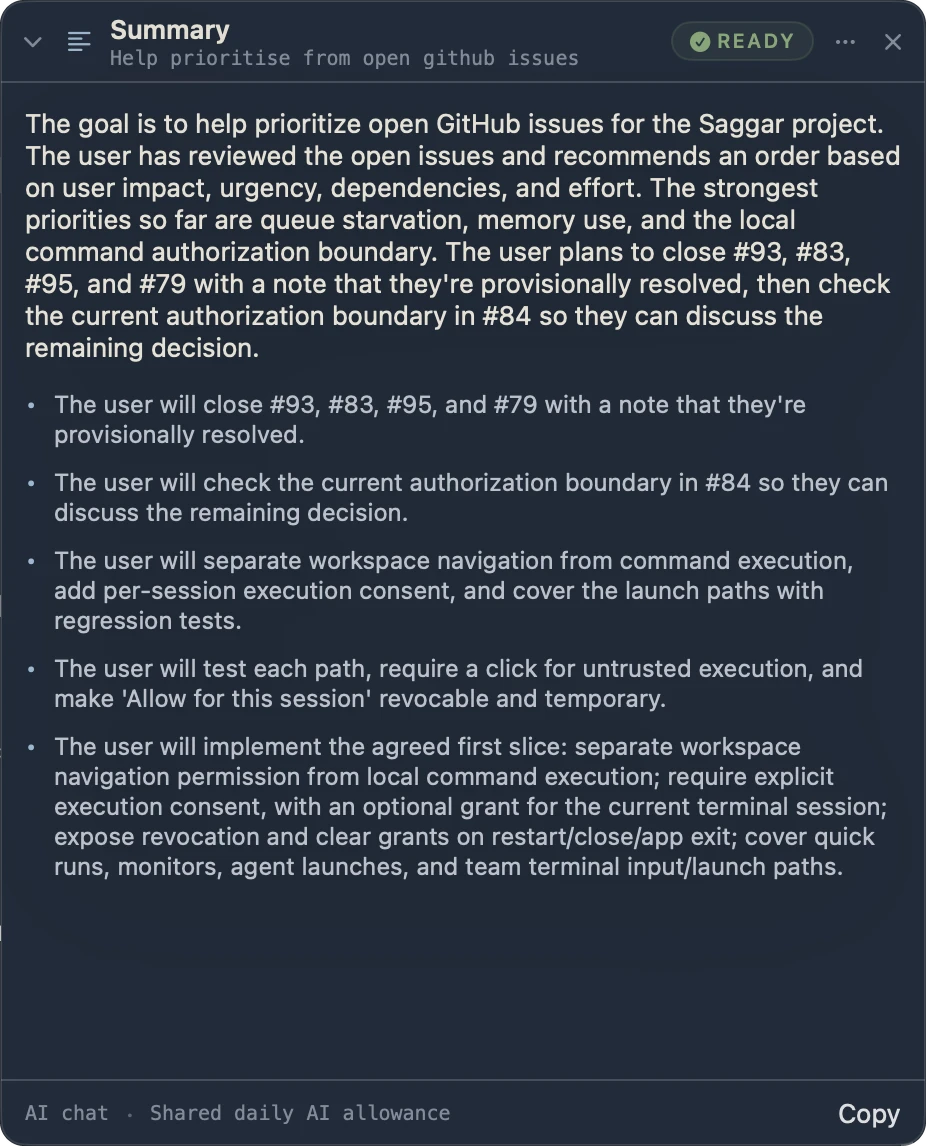
Summaries draw on your Marginal Utility account's shared daily AI allowance, so you need to be signed in with Session summaries turned on in Settings. Nothing leaves the Mac until you ask, and obvious secrets are scrubbed first; see Cloud AI features.
Review all your sessions
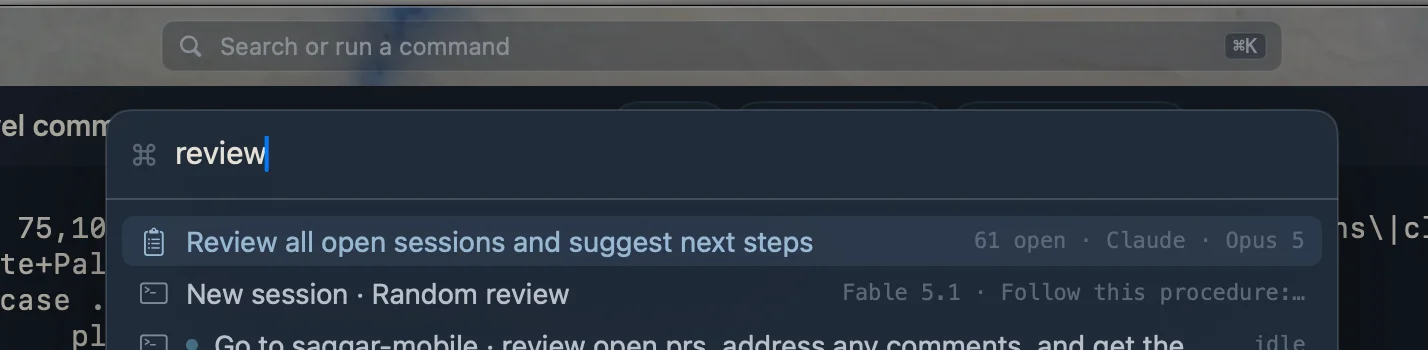
Open the command palette with ⌘K, type review, and choose Review
all open sessions and suggest next steps.
When you have lost track of what a dozen agents are doing, this starts a new agent session that looks across every open session and suggests what to do next with each. The row shows how many sessions are open and which agent and model will do the review.
Rest on a session in the project menu
Rest — don't sweep — on a session row you are not currently looking at, and a card shows the last dozen lines of its output.
It is for answering "what is that one doing" without leaving the session you are in, so it never appears for the session already on screen.
Click the amber mark instead of switching
Put the pointer on a row whose session needs you, and its amber ! turns into
a tick you can click:
- a filled tick answers the prompt with its default;
- a hollow tick marks the bell as seen.
Either way you resolve the claim without leaving the session you were working in.
Hold ⌘ to see where everything is
Hold ⌘ for a moment and the interface labels itself. Let go and it all goes away.
- Each session in the project menu gets its number for ⌘1–⌘9.
- The controls in the window chrome get their chords.
- Dashed ghosts appear in the corners where the monitor and quick-run panels will open.
Drag things in
Saggar accepts drops in six places, and each does something different.
From the Finder
- A folder onto the project menu adds it as a project. The menu draws an amber border when it will take the drop. Loose files are ignored — a project is a directory.
- A file or folder onto a terminal types its path, quoted and escaped as one argument, with a trailing space. Drag several at once and you get several arguments. This is what Terminal.app does, and Saggar does it the same way.
- An image onto an agent's terminal does that, and also keeps the image, so the placeholder the agent writes back previews on hover.
- Files onto the new-session dialog's Attachments section attaches them to the agent's first task, so the paths arrive with the prompt rather than a turn later.
From the project menu
- A project row onto a session types that project's path. Handy for
cd, for opening an editor, or for telling an agent where to look. Hold ⌥ and the same drag types the path followed by the project's Saggar context: its name, its branch, and asaggar session <id>line for each of its terminals with that terminal's status. - A session row onto a pane with ⌥ held types
saggar session <id>, the line that names that terminal to an agent. Drop it in a chat and ask about the terminal beside you; the agent can read, explain, or wait on it from there. Without ⌥ the same drag still places the terminal in the pane.
The session's ⋯ menu has Copy session reference for the same line, which is what you want when the chat is in another app.
Drag things around
- Drag a session row to reorder it among the sessions in the same project or unlinked group. The target row turns amber before you drop.
- Drag a session row from the project menu onto the left or right half of the terminal area to open it there. Dropping on the right gives you a split with the session you were in. Hold ⌥ and the same drag leaves a reference to that terminal in the pane you drop on instead of moving it.
- Drag a session's header strip out of the window to tear it off into a window of its own.
- Drag the seam between the project menu and the terminal to resize it, and double-click the seam to snap it back to the default width.
The Git chip is a set of buttons
The chip in a project's header is clickable in two places.
- The branch name opens a branch switcher.
- The change count lists the changed files, and each row there will show a diff, open the file in your IDE, reveal it in the Finder, or copy its path.
It also stops updating while the pointer is over it, so nothing moves out from under a click.
Quieter details
- ⌘Q is hold-to-quit. Tapping it does nothing, and holding tells you what is still running before it goes.
- ⌘⇧P lists what is listening on which port, including processes that outlived the session that started them.
- ⌘/ shows the project's scratchpad, which is where Send last output to scratchpad puts things.
- ⌘L puts the cursor in the project menu's filter. It is fuzzy and live, and Escape clears it.
- ⌘=, ⌘-, and ⌘0 change terminal text size for every session, not just the focused one.
- Typing into a terminal you have scrolled up in returns you to the bottom, so a command entered a row or two above the prompt still lands.
- Right-click a project for Rename project… — a local display name, so the folder on disk keeps its own — and for an emoji, which you can pick from the grid or type.
- ⌘K on an empty query offers the session you last jumped to as ↵ again, so bouncing between two sessions is one key.
- ⌘⇧/ shows every shortcut, whenever the list stops being memorable.