Settings and maintenance
Saggar's defaults favor a quiet, recoverable workspace. Settings lets you change how it looks, what earns your attention, how long terminal state stays on disk, and which integrations may edit files outside the app.
Find a setting
Open Settings with ⌘,. The sidebar is searchable, including words that don't
appear in a pane title: "hooks" finds Providers, "scrollback" finds Sessions,
and "split pane" finds Interface.
The panes are grouped the same way as this page. Updates and Language have no pane of their own; the sections below describe how they behave.
| Group | Panes |
|---|---|
| App | Appearance, Interface, Notifications, General, Updates, Language |
| Workspace | Projects, Sessions, Session presets, SSH |
| Agents | Providers, Supervision, Automation |
| Access | CLI, Account, Remote control |
Appearance
Open Appearance settings
A theme family pairs a light and dark palette with a window material. Saggar can follow macOS automatically or stay on either appearance. Custom mode lets you choose the light and dark palettes independently.
Every named family, Neutral included, paints a photographic ceramic texture behind the window. Custom uses the palette alone. Turn Show image backgrounds off to keep the same palette on a plain surface.
App text and terminal text have separate sizes:
- App text scales Saggar's menu, cards, panes, and palette. macOS still draws standard controls and menus at the system size.
- Terminal text chooses any installed fixed-width font and its own point
size, 12.5 pt by default.
⌘0in the Sessions menu returns to that. - Canvas decides whether the terminal follows the app's appearance or stays dark. The default is Always dark, painted from the dark theme you chose, because tools' dim colors assume a dark background.
Interface
Interface settings decide what stays on screen as you move between projects.
- Animate the interface can be turned off to reduce movement. The macOS Reduce Motion setting always takes priority.
- Monitors choose the default card size, whether new monitors start collapsed, and whether idle monitors fade until hovered or needed. Discreet monitor opacity sets how strongly a faded monitor shows, 0.5 by default.
- Quick runs may start tucked into their project row.
- Show progress cards docks one read-only card per Claude or Codex chat with the steps it means to take. On by default.
- Project menu is Docked or Overlay.
⌃⌘Shides it either way, and hovering the leading edge peeks at it. Discreet project menu fades it until the pointer moves over it. - Group active projects by folder shows a section per parent folder instead of one Active section.
- Show chat when available opens supported agent sessions as chat rather than a terminal. Off by default; each session can still switch.
Monitors, quick runs, and split panes follow their project by default: leave a project and they hide, then return when you come back. Interface settings can keep quick runs or the second pane visible across project changes when your workflow needs one in every project.
Notifications and sounds
Notification Center banners, menu reordering, program-raised notifications, sounds, and trackpad feedback each have their own switch. Each sound can be changed or previewed, and sound effects can be limited to the time Saggar is in the background.
When commands finish
Tell me about is a volume rather than a switch:
| Choice | What it announces |
|---|---|
| Every command | Every finish, however quick. |
| Only long commands | The default. A command that ran 8 seconds or more, timed from the boundaries shell integration reports. |
| Never | Nothing. A shell exiting, and a session that needs you, still speak. |
With Only long commands, Every finish while Saggar is in the background is on by default: once you've switched away, an agent turn or command tells you when it ends, however quickly.
Program-raised notifications
Programs inside a terminal can raise titled notifications through OSC 9, kitty's OSC 99, or OSC 777, including over SSH and from containers. Urgent messages make the session need you.
Watch patterns
Watch patterns add your own plain-text or regular-expression cues to the same vocabulary. They are useful for log tails and test watchers.
Away summary
The optional away summary collects what finished, failed, waited, or stayed dirty while you were gone into one card when you return.
Projects
Projects settings choose the default editor, control smart collapsing, and manage the folders Saggar scans for Git repositories.
- Smart collapsing folds a project in the menu once every session in it has been quiet for 15 minutes by default. A waiting prompt, a running command, or the project you're in is never folded.
- Scan these folders for repos defaults to
~/Development. Scanning walks three levels beneath each root, skipsnode_modules,.build,vendor,DerivedData,Library,Pods,target,dist, and.Trash, and stores the list in~/.saggar/config.json.
Sessions
Open Sessions settings
Keep 10,000 lines of scrollback
Sessions settings control how a terminal behaves and how long its state lasts.
- Shell integration enables OSC 133 for exact command boundaries and exit codes. On by default. See Shell environment variables for how it starts each shell.
- Scrollback chooses the live scrollback depth, 2,000 lines by default.
- Warnings control the paste, close, and quit confirmations.
- Timed tidy closes sessions that have gone quiet. It is off by default and waits 120 minutes once on. It protects waiting prompts, live commands and processes, failures, and every session currently shown in a pane, monitor, or separate window.
- Ask an agent before closing is on by default. Before a timed close, your installed Claude Code, Codex, or Copilot reviews a scrubbed transcript, and a session with something left to act on stays open. Turning review off closes eligible sessions by time alone.
Scrollback restoration
Scrollback restoration stores snapshots under ~/.saggar/scrollback. Turning
it off deletes those snapshots.
Project Activity retention is separate and can keep closed sessions by count or age. The default keeps the last 10 sessions; switched to age, it keeps 30 days. See Projects and sessions for how restored and closed sessions appear.
Session presets
A session preset is a saved way to start a session that you use in every project. Give one a readable name, then choose what opens it: your shell, or one of your configured agents and models. Saggar adds it to the + Session menu and the command palette for every project.
- A shell preset saves the full command, including the flags you otherwise type from memory. Opening it creates a normal shell in the current project, then types the command at its prompt, so your aliases, shell functions, PATH, and startup files still apply.
- An agent preset can also set reasoning effort, custom context, and an opening task. A Codex preset adds Speed (Inherit, Standard, or Fast) and Context (Default or Extended) for that session only.
Turn a preset off to hide it from launch menus without deleting it.
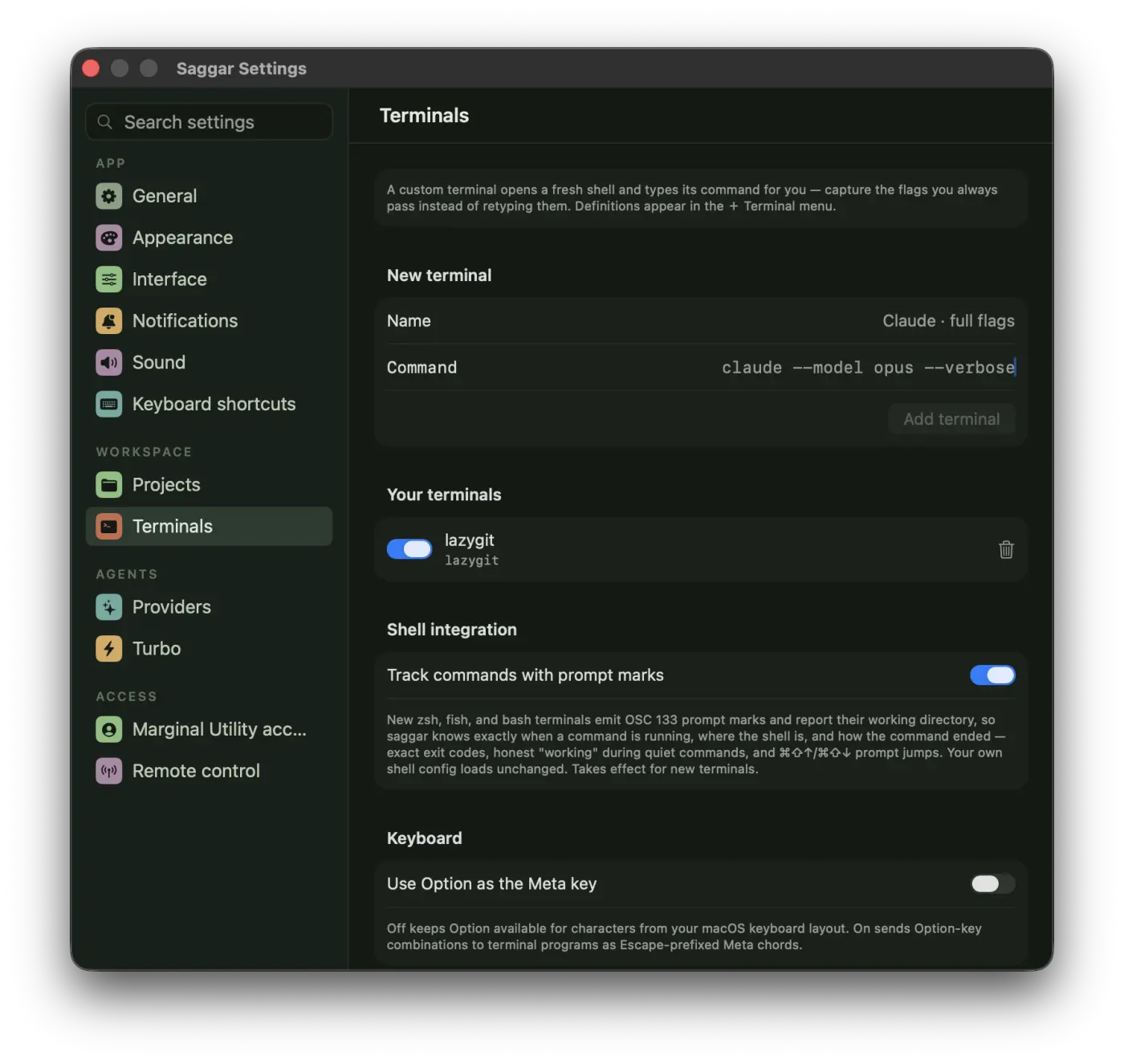
What to save as a preset
- An agent with your usual model and flags, such as
claude --model opus --verbose. - A terminal UI you reach for in many repositories, such as
lazygit, or a local dashboard such asdocker compose top. - A familiar shell setup, such as
tmux new-session -A -s work.
Keep project-specific dev servers, test watchers, and startup sets in project commands. Those belong to the repository and travel with it. Session presets belong to you and are available everywhere.
SSH targets
Open SSH settings
SSH settings save remote machines you use repeatedly. Saggar connects through macOS's OpenSSH client and opens a named tmux session on the remote machine. Closing Saggar or losing the connection leaves work in that tmux session running. Authentication, host keys, and proxies stay in OpenSSH rather than Saggar.
Add a target by hand or import a named host from ~/.ssh/config. Test the
connection before opening it. The test distinguishes an unknown host key,
missing authentication, an unreachable machine, and a machine without tmux.
Example: rent a DigitalOcean development machine
-
Create an Ubuntu Droplet in the nearest region. A shared-CPU machine with 2 GB RAM is enough for light terminal work; choose 4 GB for coding agents and builds. Check DigitalOcean's current prices rather than relying on a price quoted here.
-
Select SSH-key authentication when creating it. If you don't have a key yet, create one on your Mac with
ssh-keygen -t ed25519, then add the contents of~/.ssh/id_ed25519.pubto the Droplet. -
Connect once from Terminal, verify the host fingerprint shown by DigitalOcean, and install the basic tools:
ssh root@YOUR_IPapt updateapt install -y tmux git curl build-essential -
Give the machine a stable local name in
~/.ssh/config:Host saggar-devHostName YOUR_IPUser rootIdentityFile ~/.ssh/id_ed25519 -
Check that
ssh saggar-devworks, then importsaggar-devin SSH settings and select Test connection.
Create a non-root user before treating the machine as permanent. DigitalOcean charges for a Droplet until you destroy it; powering it off doesn't stop billing. A Linux machine works for web, backend, and general agent work, but it can't build or test macOS apps.
Providers
Open Provider settings
Each provider is one collapsed card: Claude Code, Codex, Antigravity CLI, Pi, OpenCode, and GitHub Copilot CLI. The switch beside a card's name adds that provider to the launch menus. Expand the card to:
- see whether its CLI is installed, and install it if not;
- choose models;
- install or remove its hooks;
- install or remove the Saggar skill.
Installation always names the external config or skill file it will change.
Models
| Providers | How models are chosen |
|---|---|
| Claude Code, Codex, GitHub Copilot CLI | Saggar's own catalog. Copilot's rows are learned from its recent session logs, since it has no model list command. More models reveals the older or less suitable rows the catalog hides. |
| Pi, OpenCode, Antigravity CLI | The CLI reports its own list (pi --list-models, opencode models, or agy models). Choose models asks it and lets you pick which rows appear in the new-session menu. Antigravity also ships named rows, which the picks extend. |
Context warning and away compaction
Warn when context reaches is one threshold shared by every provider that reports its context. It defaults to 50%. Past it, a monitor shows what's using the context and offers to compact.
A provider whose handshake reports context, and confirms a compaction afterwards, can compact itself while you are gone. Claude Code and Codex both do, and the switch appears inside each of their cards. It is one setting wherever you flip it.
With it on, after 59 minutes away Saggar compacts each idle chat whose context is past the warning threshold, once. A chat that is working or waiting on you is never interrupted, and anything compacted is named in the away summary.
Supervision
Open Supervision settings
Supervision settings choose which providers start supervised and show every destructive-command category that automatic approval refuses. Built-in protections can be disabled individually, and your own plain-text or regular-expression rules can hold additional commands for review.
| Setting | What it does |
|---|---|
| Supervision mode | Respond, the default, answers only when an agent asks for approval. Intercept also checks supported Codex shell calls before they run. It needs Codex 0.153.0 or newer with installed, trusted hooks, and input sent later to a running shell is not checked again. |
| Make decisions for me | Off by default. When an idle agent ends its turn with a question, Saggar tells it to use its judgment, proceed, and say what it chose. A prompt you've queued goes first. |
| Hide "Always allow" choices | On by default. Hides choices that approve future requests beyond this session, such as "Don't ask again" and auto mode, from attention cards. Everything stays available in the terminal. |
See Agents for the provider contracts and the safety model.
Automation
Open Automation settings
Automation holds the defaults behind work Saggar starts on its own. Each scheduled job and each hook keeps its own controls in its project's tab; these settings apply to all of them.
| Setting | What it does |
|---|---|
| Catch up missed runs | On by default. A job whose minute passed while the Mac was asleep or Saggar was closed fires once when it is back. Off, the missed run is skipped and the job waits for its next scheduled minute. |
| Pause automatic launches | Holds every failure that an Investigate or Fix automatically hook would have acted on in the project's Activity tab, with a note saying why, until you turn it off. Review-first hooks are unchanged, and you can still investigate by hand. |
| Investigate with | Picks the agent a hook opens. It defaults to the last agent you launched, and a chosen provider you later switch off falls back to that. |
CLI
Open CLI settings
Command line installs saggar under ~/.local/bin and updates the
profile for your configured login shell. saggar . then adds or focuses the
enclosing repository.
- Workspace changes ask first by default. You can allow them after a cancelable 10-second countdown or immediately. Completed changes always show their source.
- Command execution is separate consent. Command launches, teammate input, and saved resume commands ask before running, and you can allow once or for the current terminal session. The pane lists every session with a grant and offers Revoke. Grants end when the terminal closes or restarts, or Saggar quits.
- Let agents approve their own prompts controls whether an agent may run
saggar approveinside its own terminal. It is off until you turn it on, and destructive approvals stop for you either way.
General
Open General settings
| Setting | What it does |
|---|---|
| Launch at login | Registers the packaged app with macOS. Development builds cannot. |
| Welcome | Runs the first-launch tour again without resetting the app. |
| Diagnostics | Reveals or exports app details, logs, and crash stacks. The bundle excludes terminal input and output, commands, account data, and tokens. |
| Reset | Restores every preference to its default without removing the account, pairings, projects, sessions, history, watch patterns, or custom approval rules. |
Automatic crash sharing is on by default and sends only coarse Mac details and sanitized crash stacks. It never sends file paths, environment variables, screenshots, traces, or profiles.
Share usage analytics is off by default. When on, it shares app opens, successful terminal starts, the app version, terminal type, and known agent providers and models with PostHog under a random installation id that isn't linked to your account. No terminal text, commands, prompts, or paths are sent. Turning it off cancels uploads and clears the saved analytics and installation id on this Mac.
Updates
Saggar checks its small release manifest at most once a day and stays silent when the installed version is current or a background check fails.
When a release is available, a banner offers the right path for the installation: a visible Homebrew upgrade in a monitor, or the download page for a direct install. Check for updates… in the app menu runs the same check immediately and reports success or failure.
Language
Saggar follows the language order in macOS. The app is localized in English, French, German, Spanish, Simplified Chinese, and Traditional Cantonese.
Use System Settings ▸ General ▸ Language & Region ▸ Applications when Saggar should use a different supported language from the rest of the Mac.
Account
Open Account settings
The Marginal Utility account pane signs the Mac in or out and opens account management in the browser. It also holds settings sync and the cloud AI features.
Settings sync
Settings sync is off until you turn it on. With it on, a second Mac signed into the same account wears the same setup. The document lives on Marginal Utility's relay, so this needs an active Saggar remote subscription. Turn sync off if you would rather your preferences stayed on this Mac.
| Syncs | Stays on this Mac |
|---|---|
| Appearance, interface (including keyboard shortcut overrides), notification, sound, project and session, and account-feature preferences | Default IDE, whether the project menu is hidden right now, revealed models, enabled providers, shell integration, supervision mode and its per-provider defaults, letting Saggar make decisions, hiding "Always allow" choices, CLI self-approval and workspace-change mode, the agent review before a quiet close, remote access, keeping the Mac awake, phone alert forwarding, crash sharing, usage analytics, and the sync switch itself |
Nothing secret is eligible. Tokens, device grants, project paths, and window state are not preferences and never leave.
Each preference carries the moment it was chosen, and the most recent choice wins per preference rather than per Mac. Two Macs that each changed something different both keep their change. A Mac that has just joined adopts what the account already holds rather than overwriting it.
Cloud AI features
- Session summaries send the last part of a transcript to Marginal Utility's AI service when you ask for one.
- Smart session naming sends verbose agent prompts automatically. It is off until you turn it on.
Both scrub obvious secrets on the Mac before anything is sent. See Cloud AI features for what leaves the Mac.
Remote control
Open Remote control settings
Remote control settings choose whether the Mac dials the relay, control the idle-sleep hold, approve pairing requests, revoke devices, and show recent remote actions. The remote-control documentation covers those security-sensitive controls in full.