Projects and sessions
One window, a menu of codebases down the left, and every session nested under the project it belongs to. The arrangement matters: a tab bar makes twenty shells look alike, and the point here is that they don't.
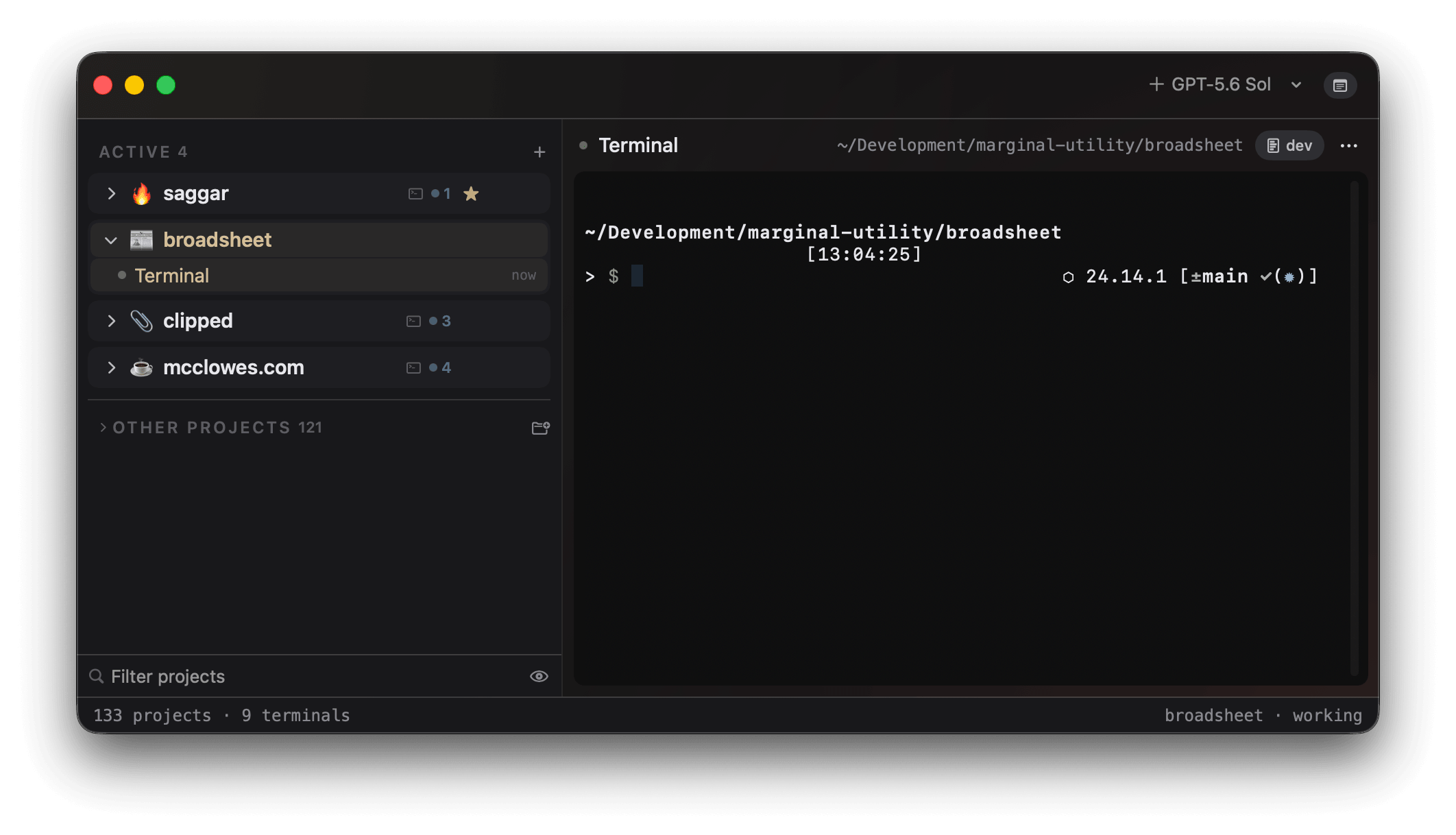
The project menu
Projects with live sessions sit at the top, favorites first and then alphabetically, so a project keeps its place. The rest wait under Other projects.
Inside a project, docked monitors always lead. The rest keep the order you
gave them, so rows and ⌘1–⌘9 stay put. Move a waiting session to the
top in Settings ▸ Notifications, off by default, floats a session that
needs you above its neighbors without crossing the line between monitors and
ordinary sessions.
An open project shows each session's own mark. A project that has folded its sessions away wears one mark for the lot, so an amber ! four projects down is a real claim on you without anything being unfolded. See Smart collapsing for what that mark means.
Add a project
| Action | How |
|---|---|
| Add a codebase | ⌘⇧O |
| Add or focus the enclosing repository from any terminal | saggar ., once you've installed the command (Settings ▸ CLI) |
| Filter the menu | ⌘L |
saggar . climbs to the enclosing git root, so running it from src/ means
the repository. A worktree checkout counts as a project in its own right. The
menu starts empty and offers to set up repo scanning or add a project directly.
The project header
A project's header carries its branch, its dirty and ahead/behind counters, and the buttons to open it in your editor or reveal it in Finder.
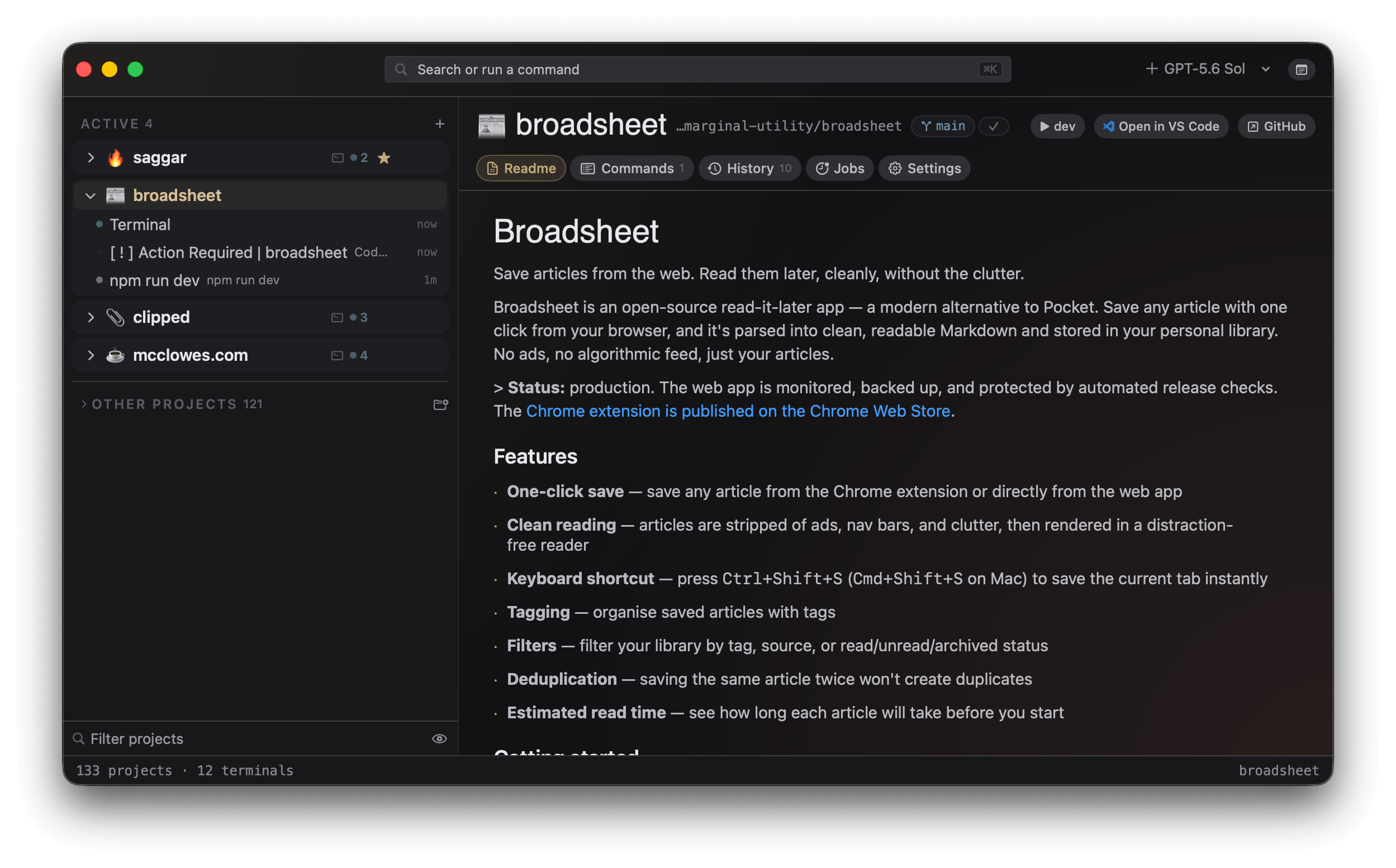
The project landing also has Docs and Agent context tabs for the repository's Markdown, agent instructions, and skills. Worktree cleanup, Git actions, and listening-port ownership live alongside them. See Project workspace for those tools.
Sessions
| Action | Shortcut |
|---|---|
| New session of the type you last picked from the + menu | ⌘T |
| New plain shell | ⌘N |
| Close the session | ⌘W |
Every session is a login shell
Nothing is emulated and nothing is wrapped: it is your shell, your profile, your prompt, with three facts added to the environment so tools can tell where they are running:
SAGGAR=1TERM_PROGRAM=saggar- a per-session
SAGGAR_SESSIONid
Sessions stay alive
Sessions stay alive while you look elsewhere. That is the difference between a manager and a switcher, and it is what makes a background agent's prompt something Saggar can notice.
Placement survives relaunch too: quit with eight sessions across three projects
and they return in the same working directories. A plain shell gets a fresh
process, with its saved scrollback replayed dimmed above a ── restored ──
divider so the context is there without pretending to be live. A supported
agent replays nothing and resumes its conversation instead, exactly where an
installed handshake gave Saggar the session id, and otherwise the most recent
one in that directory. See Agents for what each provider reports.
When a shell exits
A shell that exits with code 0 has pressed its own close button: Saggar closes the session on the next beat and files it in the Activity tab. A non-zero exit stays open, amber, so the output can be read. Quick runs handle their own close.
Closing a session
⌘W asks first when something is still running in the shell, and Don't ask
again on that prompt turns the check off (Settings ▸ Sessions). It also
asks, every time, when a Claude subagent is still working or Claude hasn't
finished collecting a subagent's result, since closing discards that work.
Closing a session by hand launches whatever you queued with Run next….
Timed tidy
Close sessions that have gone quiet in Settings ▸ Sessions, off by default, closes idle or cleanly exited sessions once they have been quiet for two hours. Presets run from 30 minutes to 24 hours. Each sweep closes at most three, oldest first, and never a busy session, a session on screen, a failed one, or an unassigned one. Ask an agent before closing, on by default, puts a review in front of each close.
The Activity tab
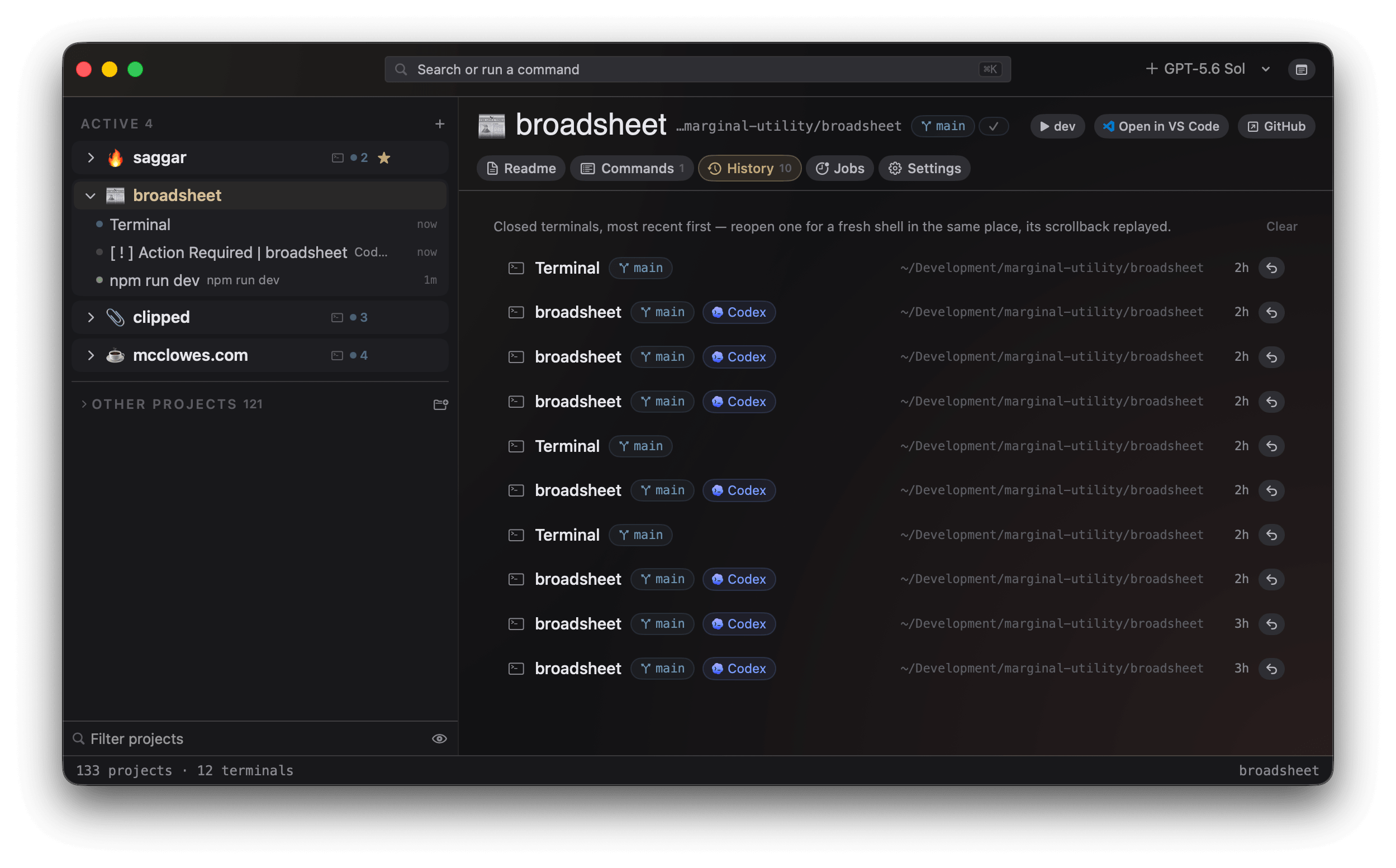
A closed session is remembered in the project's Activity tab, alongside scheduled runs and hook deliveries, newest first. Filter by All, Sessions, Scheduled, or Hooks, and by outcome. Superseded hook records stay hidden. The palette offers the five most recent closed sessions to reopen, with how long ago each one went, because the common case after a close is wanting it back.
Retention is set in Settings ▸ Sessions: the last 10 closed sessions per project by default, or a number of days. Unassigned sessions leave no entry, and removing a project clears its history.
Scheduled runs open in the background; Run now lands in the terminal. An occurrence more than two minutes late counts as missed. Catch up missed runs in Settings ▸ Agents ▸ Automation, on by default, fires a missed occurrence once when Saggar is back, looking back at most three days; with it off, the task waits for its next minute.
Quick runs
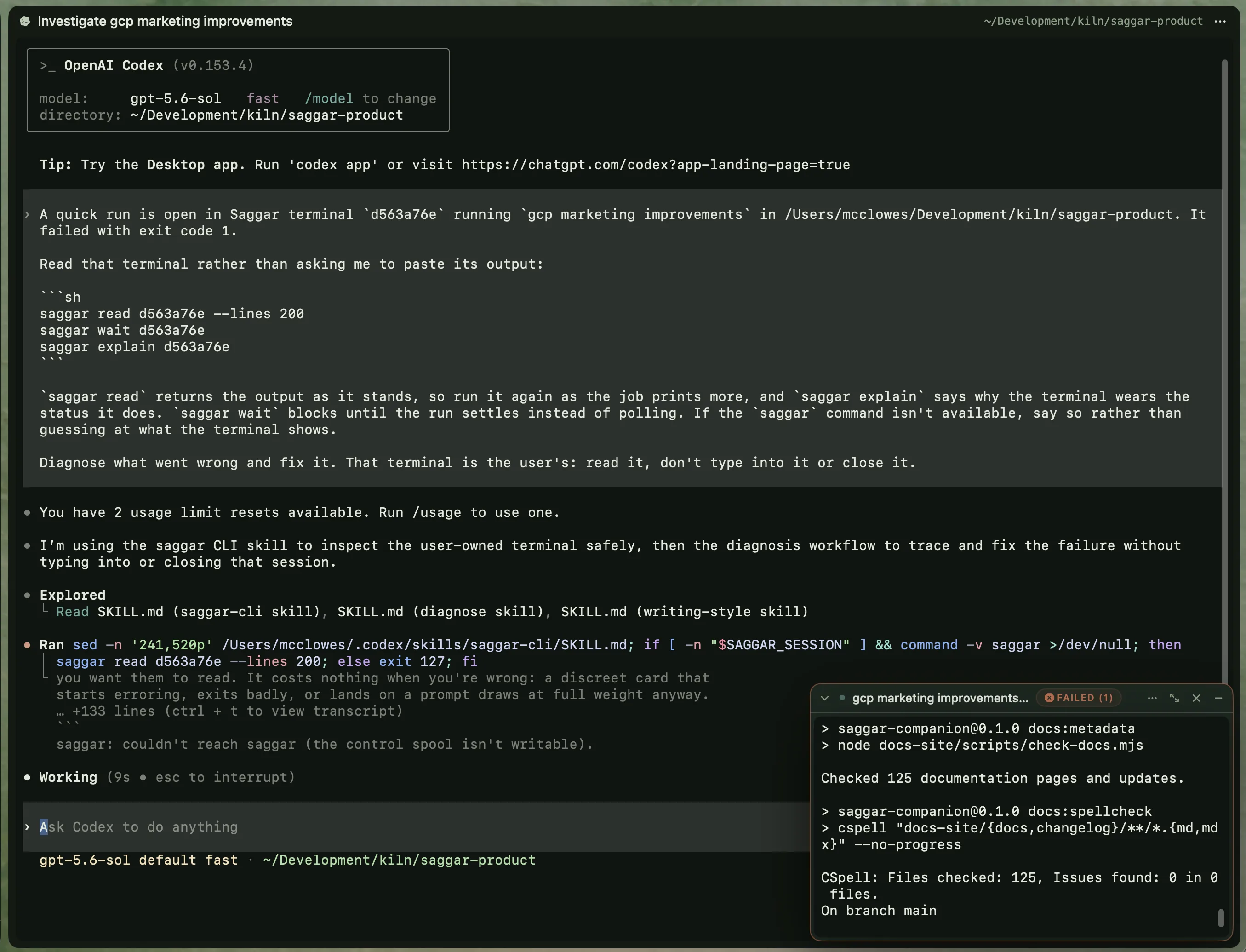
⌘P runs a command without displacing the session you're working in. Its
terminal opens in a compact corner, stays readable while the command runs, and
closes when a successful run settles. A failed run stays open with its exit
code and an amber frame.
Investigate a failed run
Choose Investigate with an agent from the failed run's menu to open an agent in the same project. Saggar hands over the run's terminal id rather than pasting a frozen transcript, so the agent can read the output as it stands and follow a job that is still printing.
The same menu item sits on every terminal: a docked monitor, a split pane, a popped-out window, or an ordinary session. Investigate and fix a bug covers what the agent is handed.
Unassigned sessions
A session tied to no project at all opens at home: the scratch shell you want before you know which codebase the answer is in.
| Action | Shortcut |
|---|---|
| New unassigned session | ⌘⇧T |
| New unassigned plain shell | ⌘⇧N |
The moment it cds into a codebase already on the menu, that project adopts
it. Saggar checks every beat, and when projects nest the deepest match wins.
The session reorganizes under the project in the menu, and from there it is
an ordinary project session: branch chip, history, scratchpad and all.
Smart collapsing
A menu that only grows is a menu you stop reading, so it tidies itself. Once a project has gone fifteen minutes without output, input, or being opened, the project folds its session list away and wears one mark instead, the loudest of what is inside: an amber ! when a session needs you, then a cross for a failure, then an eye for work ready for review, then a tick for a clean finish. A folded project whose sessions are all working or idle wears nothing. The full count, such as "3 sessions: 1 needs you, 2 working", is the row's VoiceOver label.
The threshold is a picker in Settings ▸ Projects, and the whole behavior switches off there. The sweep runs about every ten seconds.
What never folds
What it refuses to fold is as much of the rule as what it folds:
- A project with a waiting prompt or a live command stays open however old its last byte is.
- The project you're currently in stays open.
- A fold Saggar placed unfolds itself the moment that project wakes or starts needing you.
- Unfold one by hand and it stays as you left it. The chevron is a decision, and the sweep never argues with it.
Reaching for a folded project opens it on the spot, whether by a click, an open from the palette, a new session, or a jump to one of its sessions. Asking for a project is asking to see it.
While you're away
Summarize what happened while you were away in Settings ▸ Notifications, off by default, raises a card summarizing what your sessions did once you've been gone 30 minutes. The picker runs from 15 minutes to 4 hours, and nothing shorter than five minutes counts as away. Away means Saggar isn't the frontmost app, or the Mac has seen no input for 30 seconds.
Compact idle chats while you're away in Settings ▸ Providers, also
off by default, types /compact once into an idle Claude Code or Codex
session whose context is past the warning point, after 59 minutes away. A
session that is working or waiting on you is never interrupted.
More than one at once
The menu answers watch many. Three other arrangements answer the cases it can't:
| Arrangement | Shortcut | For |
|---|---|---|
| Split view | ⌘D | Drive a pair: an agent and its dev-server logs, or a scratch shell for git status while a build churns |
| Monitor dock | ⌘⇧M | The long-running watch you keep half an eye on: npm run dev, test --watch, tail -f |
| A window of its own | Header ellipsis | Compare two sessions rather than pair them |
Split view
⌘D splits a fresh shell in the same directory; a menu row's Open beside
current puts an existing session there. One pane owns the keyboard, drawn as
a focus ring and moved with ⌘]. ⌘⇧W collapses the split, returning the
second session to the menu alive.
It is deliberately flat: one extra pane, one axis, no recursive pane tree.
Monitor dock
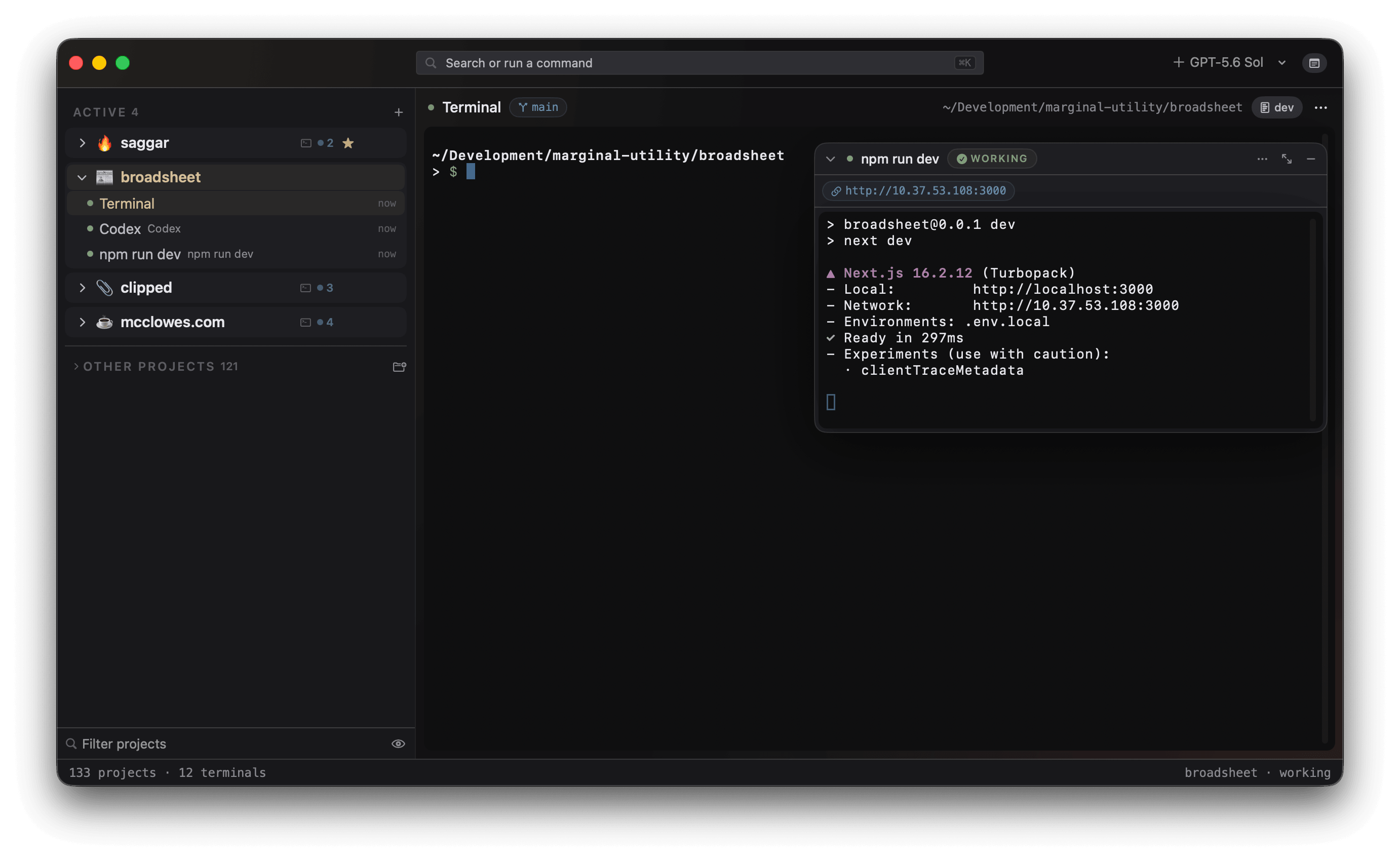
The monitor docks in the top-right corner, read-only, never taking focus. It is scoped to its project, so it follows you across that project's sessions and hides when you leave.
- A running session can be moved there without a restart (Dock as monitor).
- Selecting a monitor promotes it to the main pane so you can interrupt or restart it.
- Pressing ↵ without typing docks a bare shell: the chord has already decided you want a monitor, and the field only says what it runs.
Because the premise is that you're looking elsewhere, the dock lifts two things out of the scroll: the served URL, clickable, and the "ready in 340 ms" line that says it came up. Errors in the tail turn the frame amber with a count, and a dev server that dies rings the same cue any other failed session does.
A window of its own
Any session tears out into a separate window from the header's ellipsis. The layout is yours, and the app doesn't try to own your screen.
Beside the session
Scratchpad
⌘/ opens the project scratchpad beside the session. It is a local markdown
file at <project>/.saggar/scratchpad.md, kept out of Git so temporary notes
and handoff context stay in this checkout.
Peek at a background session
Hovering a menu row raises a peek card on the row's trailing side: the session's name, project, and status, its transcript's last lines, its branch and agent.
It is strictly for background sessions. One already on screen raises nothing, since a preview there would only cover the live shell with a staler copy of itself. The card takes no clicks, so the row underneath still opens on the first one.
Preview a link or path
Hovering a URL or a file path inside a terminal previews that instead:
- host and title for a link, with the page's Open Graph image and description filling in behind it;
- name, size, and first lines for a file;
- entries for a folder;
- an honest "not found" for a path that doesn't resolve.
One click opens it in the browser, the default app, or Finder.
Git state
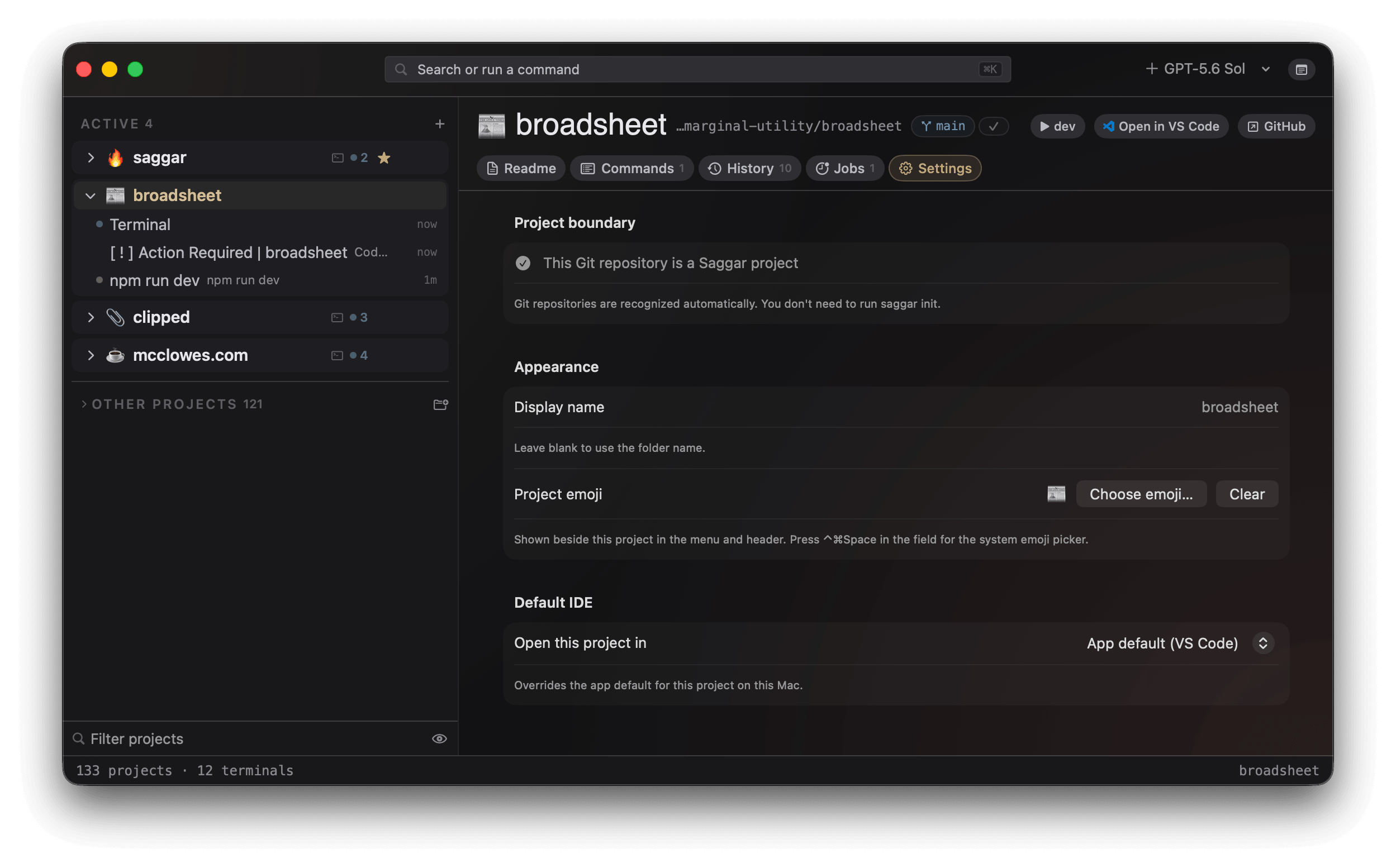
Each session, worktree, and project wears its branch alongside a state chip: how far it sits ahead of or behind its upstream, and how many files are dirty. Amber marks uncommitted work, which is also what makes "finished, but with uncommitted work" a rank of its own in triage.
Saggar refreshes after commands finish and periodically for changes made elsewhere. Untracked directories count once, and ignored files stay excluded.
Ahead and behind
Ahead and behind counts compare your checkout with Git's locally stored
upstream reference. They don't check the remote automatically. Choose
Fetch or run git fetch to update that reference.
An amber question mark, Upstream status unavailable, means Git couldn't make the comparison. If fetching doesn't resolve it, check that the branch still has a valid upstream.
Checkout-local files
Saggar writes checkout-local files into each project:
.saggar/scratchpad.md and .saggar/jobs/. When a repository's .gitignore
doesn't cover them, the project landing offers one click to append the lines.
If git already tracks a file, it says so and names the git rm --cached that
a fresh ignore rule won't do for you.
Build and run native apps
Saggar recognizes Xcode workspaces and projects, and Android projects with a
Gradle wrapper. Open the command palette and search for build, test, run,
clean, format, logs, devices, or screenshots. Finite work runs as a quick run;
Simulator and adb log streams dock as monitors.
Project settings for native apps
Project Settings can keep an Xcode scheme, build configuration, Simulator or Android device, and Android application ID. These choices stay on this Mac.
The latest task result appears beside the project and in its header. A failed result lists the source locations Saggar could parse, and choosing one opens the configured IDE at that line.
Back to session
File paths printed in terminals also open at their line number. After Saggar sends you to an IDE, Back to session returns to the live session that started the excursion.
Signing, visual layout, and deep debugger work still belong to Xcode or Android Studio. Saggar owns the build-and-attention loop around them.